Connect Anthropic with your Vault admin key
On this page
Your Anthropic Vault admin key lets Outlet manage app access in your account. Outlet creates a workspace for each app you approve. You create that app’s Vault App key inside the workspace. Your Vault admin key stays encrypted in Outlet. Apps never receive it.
What you need
You need the admin role in your Anthropic API organization. Create your Vault admin key on the Admin keys page at platform.claude.com. Vault admin keys start with sk-ant-admin. A Direct API key will not connect your account to Vault.
Steps
Sign in to the Claude Console
Go to platform.claude.com and sign in. Older links to console.anthropic.com land in the same place.
Only an admin of the Anthropic organization can make an admin key.
Set up your organization (skip if you have one)
Open Organization settings in the sidebar. If Anthropic asks you to create an organization, do it; solo accounts are fine, an organization of one is normal. Admin keys lives in the same section.
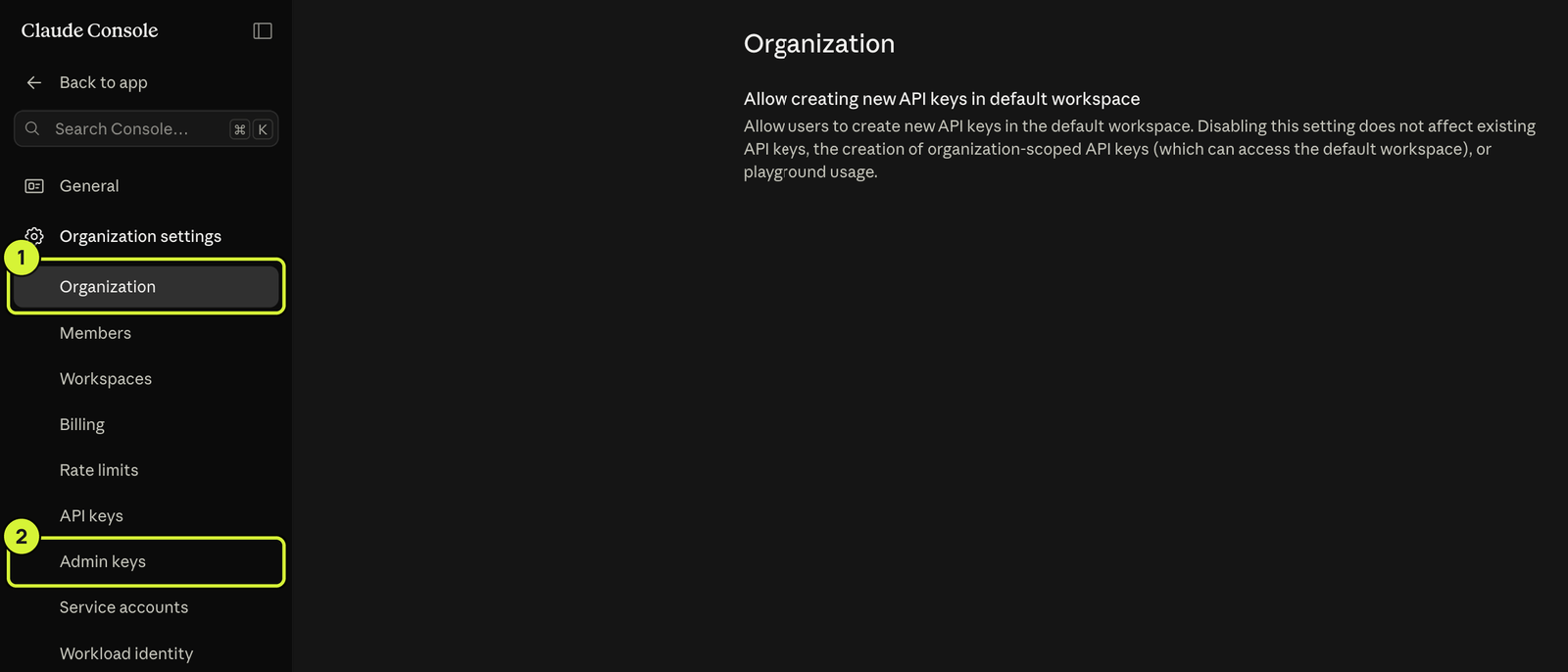
Create the admin key and copy it
Open Admin keys at platform.claude.com/settings/admin-keys. Create an admin key named Outlet. Copy it before closing the dialog. Anthropic shows the full key only once.
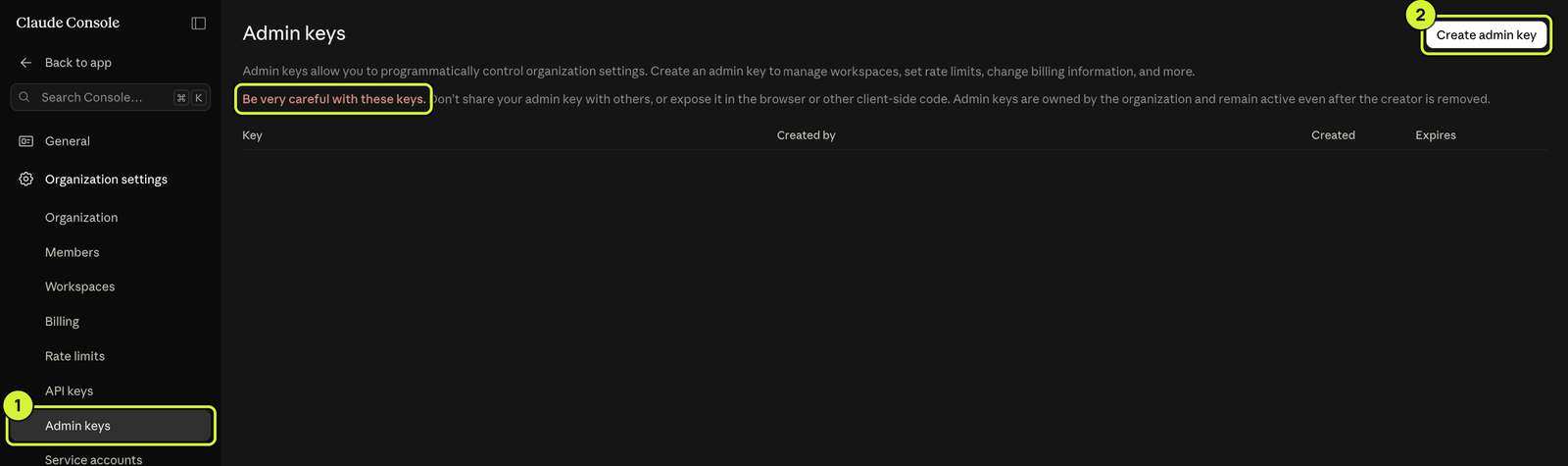
Paste it into Outlet
Back on Outlet, paste your Vault admin key into the Vault admin key field. Then review the app’s Vault access and cap.
Later, when an app connects
After you approve Vault access, create an API key in the workspace named on Outlet. On Anthropic’s API keys page, set Scope to that workspace.
On the API keys page, click Create key. Set Expires to Never. Set Scope to the workspace named on Outlet. Copy the API key and return to Outlet.
Paste it into the Vault App key field on Outlet.
Learn more
Anthropic's official pages: Create an Admin API key, Admin API overview and Console roles and permissions.