Get your fal Vault admin key
On this page
Outlet uses your fal Vault admin key to create a separate Vault App key for each app you approve. Your Vault admin key is never given to apps.
Steps
Sign in to fal
Open fal.ai/dashboard/keys and sign in. Choose the fal account or team you want to connect to Vault.
Create your Vault admin key
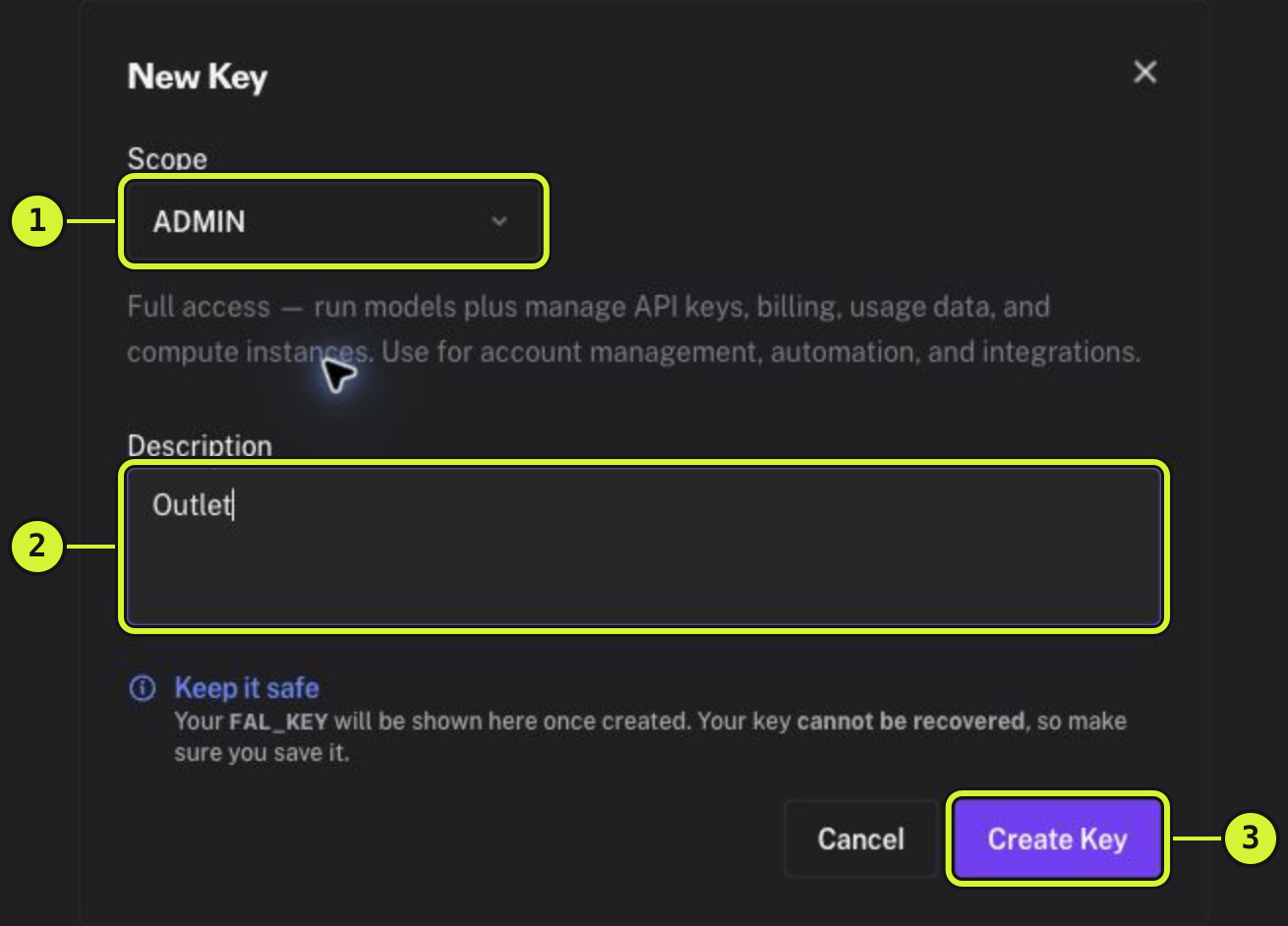
Click Add key. In New Key, set Scope to ADMIN. Under Description, enter Outlet for your Vault admin key. Click Create Key.
Copy your Vault admin key to Outlet
Copy your whole fal Vault admin key before closing the result. Include both parts and the colon between them. Return to useoutlet.dev and paste it into the Vault admin key field.
Review this app’s Vault access
Choose this app’s Vault cap before you approve access. Outlet creates its own Vault App key on fal. The Vault App key is named Outlet · <App>, with the app’s name in place of <App>.
Outlet tracks this Vault App key’s spending from fal’s usage reports. fal has no spending limit for each Vault App key. When reported spending reaches the Vault cap, Outlet deletes the Vault App key.
Revoke this app’s Vault access any time on useoutlet.dev. Outlet deletes the app’s Vault App key. Work fal has already accepted may still finish and be charged.